
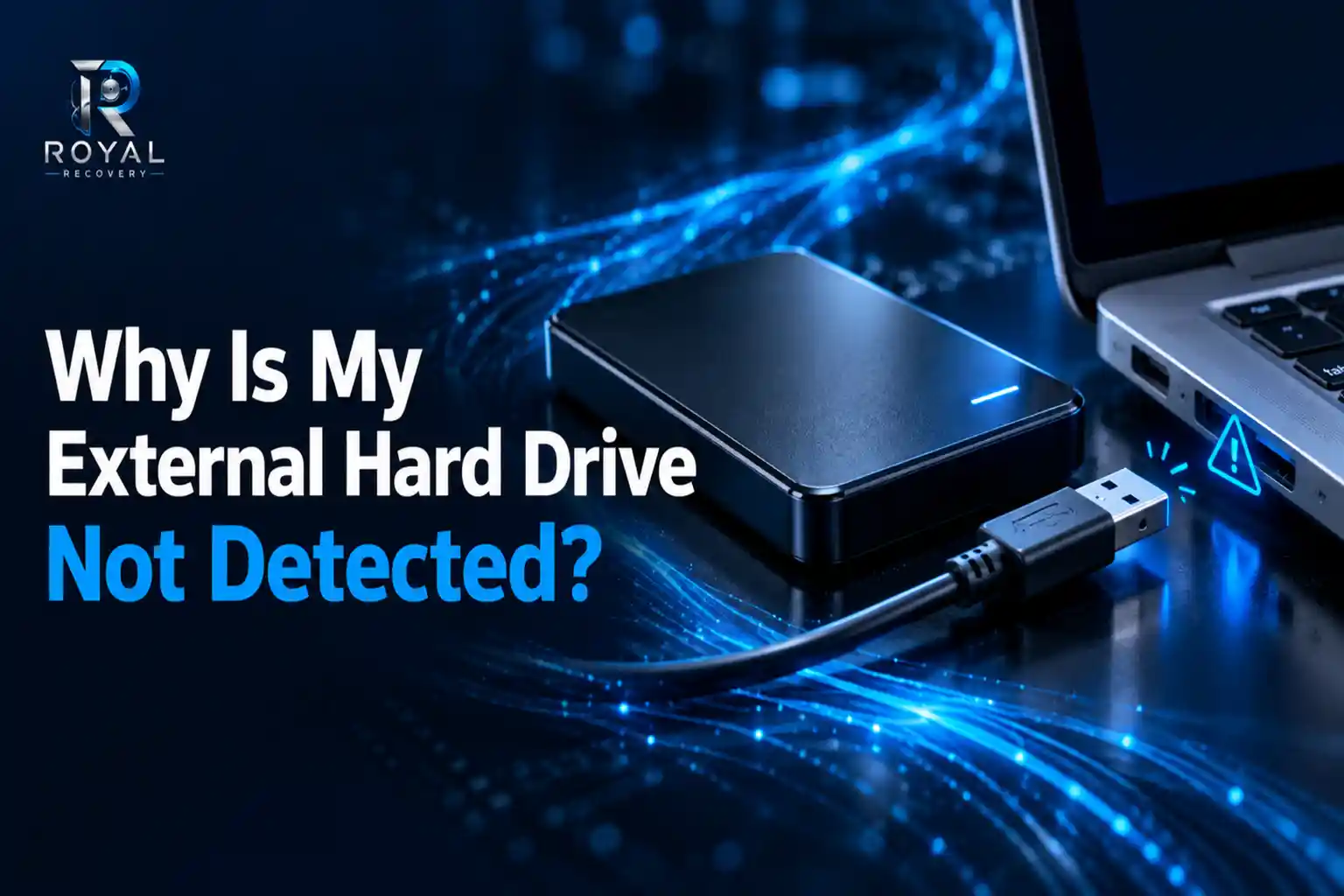
Connecting an external hard drive and discovering that none of your files are accessible can be alarming, especially when the drive contains family photos, business documents, project files, or years of backups. The drive may not appear in File Explorer, Finder, or even the computer’s disk management utility. In other cases, its light may turn on while the computer still fails to recognize it.
An external hard drive may stop appearing because of a simple connection problem, file system corruption, or serious physical damage. What you do next can directly affect the possibility of recovering your files. If the data is important, do not format, initialize, or repeatedly reconnect the drive.
Royal iRecovery provides professional external hard drive data recovery in Muscat for individuals and businesses throughout Oman. Our specialists diagnose logical and physical failures before recommending the safest recovery method.
Why Is My External Hard Drive Not Being Detected?
An external hard drive needs a stable physical connection, sufficient power, a working controller, and a readable file system. A failure in any of these areas can prevent Windows or macOS from detecting the device correctly.
The most common causes include:
- Faulty USB cable
- Damaged USB port
- Insufficient power
- Defective power adapter
- Damaged drive enclosure
- Missing drive letter
- Outdated USB driver
- Corrupted file system
- Damaged partition table
- Bad sectors
- Read/write head failure
- Controller board damage
A drive that stopped appearing after a Windows or macOS update may have a software, driver or compatibility problem. However, a drive that failed after being dropped, exposed to water or affected by a power surge may have physical damage.
The symptoms matter. A silent drive with no light may have a power or electronic problem, while repeated clicking, beeping, or grinding may indicate internal mechanical failure.
What Should You Do First When an External Hard Drive Is Not Detected?
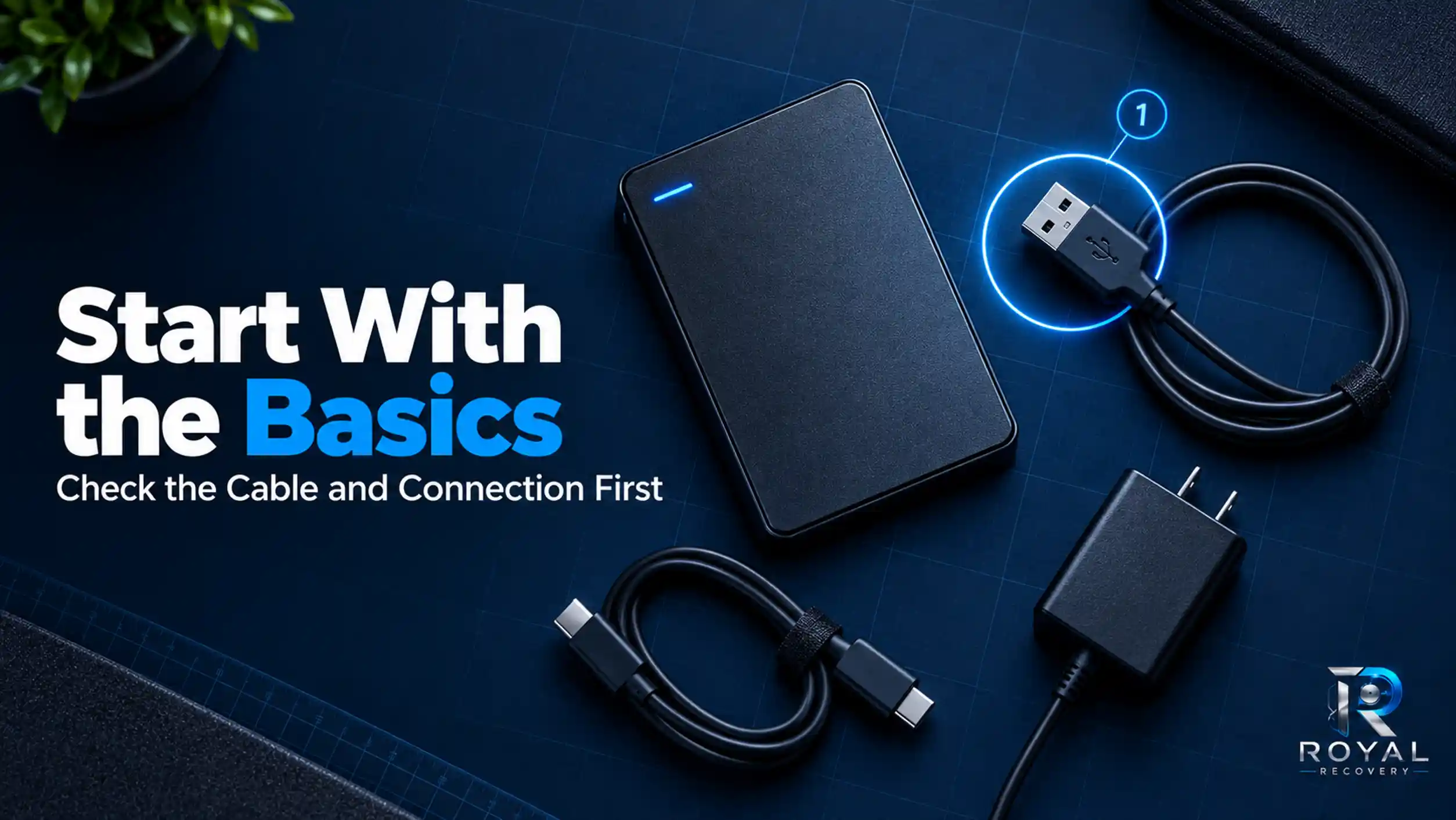
Start with a few basic checks that do not change the information stored on the drive:
- Alternative USB cable
- Different USB port
- Direct computer connection
- Another compatible computer
- Original power adapter
- Secure power connection
- Disk Management inspection
- Disk Utility inspection
Avoid connecting the drive through an unpowered USB hub. Some portable external hard drives require more power than a hub can provide.
If the drive works on another computer, the problem may involve the original computer’s port, driver, or operating system. If it still doesn’t work anywhere, the drive, enclosure, or internal USB controller may be damaged.
Stop testing immediately if the drive produces clicking, grinding, or repeated spin-up sounds. Continued power cycles can worsen internal damage and reduce the likelihood of successful data recovery.
How to Fix an External Hard Drive Not Detected in Windows
Windows may recognize an external hard drive at the hardware level without displaying it in File Explorer. The following checks can help identify where the detection process has failed.
Check the Drive in Disk Management
Right-click the Start button and select Disk Management. Look for the external drive in the lower section of the window.
Its status may appear as:
- Online
- Offline
- RAW
- Unallocated
- Not Initialized
- No Media
- Unknown
If the drive appears healthy but has no drive letter, Windows may detect it but not display it in File Explorer.
Do not format or initialize a drive containing important data. These operations can change its disk structure and complicate recovery.
Assign or Change the Drive Letter
If the partition appears healthy, right-click it and select Change Drive Letter and Paths. Assign an unused letter and check File Explorer again.
This method is suitable only when the partition appears normal. It is not a solution for RAW, unallocated or physically damaged drives.
Check the Drive in Device Manager
Open Device Manager and inspect the Disk drives and Universal Serial Bus controllers sections. A warning symbol may indicate a driver or communication problem.
Windows may occasionally detect the enclosure but fail to communicate with the hard drive inside it. This is why a device can appear in Device Manager but not show up in File Explorer.
Reinstall the External Hard Drive Driver
If the device has a driver error, uninstall it and restart Windows to let the operating system reinstall the driver.
Avoid downloading unknown driver programs. Unverified software can introduce security risks without resolving a hardware failure.
Check the USB Power Settings
Windows may turn off USB devices to conserve energy. USB selective suspend and power-management settings can sometimes interrupt communication with an external drive.
However, changing power settings won’t repair a damaged disk, defective enclosure, or failed read/write head.
How to Fix an External Hard Drive Not Showing Up on a Mac
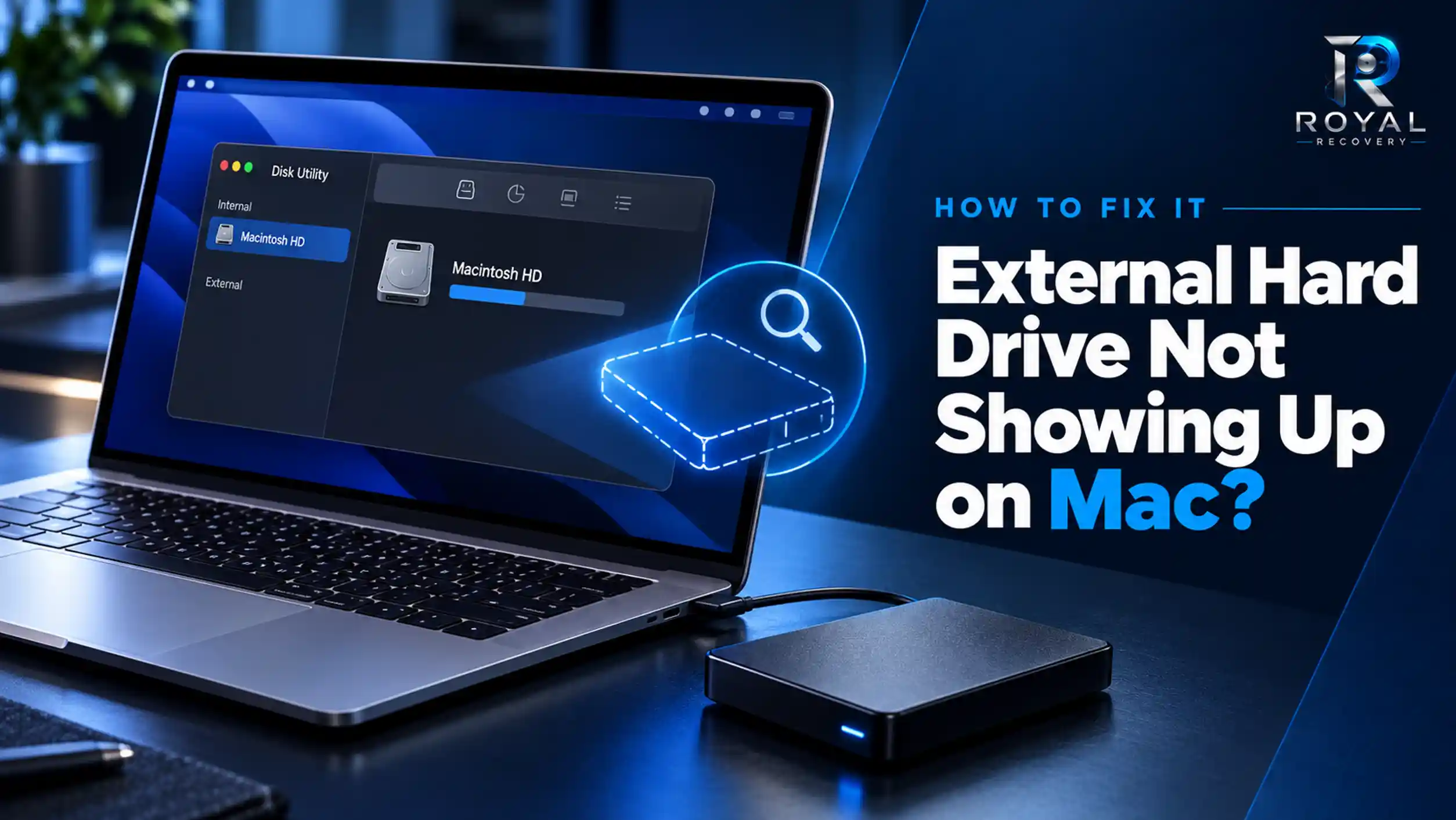
On a Mac, the drive may be connected but hidden from the desktop or Finder. It may also be visible in Disk Utility without being mounted.
Enable External Disks in Finder
Open Finder Settings and check the General and Sidebar sections. Make sure external disks are selected.
If the drive then appears, the problem was related to Finder visibility rather than data loss.
Check the Drive in Disk Utility
Open Disk Utility and select View > Show All Devices. Check whether the physical drive or one of its volumes appears in the sidebar.
A visible but unmounted volume may have a file system or mounting problem. A drive missing from Disk Utility may have a connection, power, electronic, or physical issue.
Try to Mount the External Drive
Select the volume and click Mount. If mounting fails, don’t repeatedly run repair operations if the data is valuable.
Tools such as First Aid modify file system information. They may be appropriate for backed-up data but can create additional complications when a failing drive contains the only copy of important files.
Check the File System Compatibility
Windows and macOS don’t support every file system the same way. A drive formatted with NTFS may have limited functionality on macOS, while APFS or HFS+ drives are not normally readable on Windows without additional software.
Compatibility issues usually differ from complete hardware non-detection. Check whether the drive appears in Disk Utility or Disk Management before assuming that its format is the only problem.
External Hard Drive Detected but Not Showing in File Explorer
When an external hard drive appears in Disk Management but not File Explorer, the computer can communicate with the device, but Windows can’t display its volume normally.
Possible causes include:
- Missing drive letter
- Offline disk status
- Damaged partition
- Unsupported file system
- RAW volume
- Unallocated space
- File system corruption
A missing drive letter may be easy to fix. A RAW or unallocated drive requires greater caution. Formatting may make the storage reusable, but it won’t protect existing files.
If the stored information matters, prioritize data recovery before attempting repairs.
What Do RAW, Unallocated, and Not Initialized Mean?
A RAW status means Windows cannot recognize a usable file system. This may result from corruption, unsafe disconnection, bad sectors, or a deteriorating hard drive.
An unallocated status means Windows cannot identify a usable partition in that area of the disk. The files may still exist, but Windows can no longer access them normally.
A Not Initialized message means Windows cannot read the disk information it expects. It doesn’t automatically mean the drive is empty.
Users often click Initialize Disk because Windows presents it as the next step. If the drive is new and contains no data, initialization is normal. If it previously contained files, initialization won’t recover them.
Avoid the following actions before professional diagnosis:
- Disk initialization
- New partition creation
- Drive formatting
- CHKDSK commands
- Repeated repair scans
- New data storage
When Should You Stop Trying to Fix the Drive Yourself?
Simple checks are reasonable when the drive behaves normally, and the problem appears limited to a cable, port, or visibility setting. DIY troubleshooting becomes risky when physical failure is possible.
Stop using the drive if you notice:
- Repeated clicking
- Grinding sounds
- Failed spin-up
- Excessive heat
- Burning smell
- Drop or impact damage
- Water exposure
- Frequent disconnection
- CRC errors
- I/O errors
- Zero-byte capacity
- Complete system freezing
Never open a hard drive outside a professional cleanroom environment. Invisible dust particles can reach the platters and cause permanent surface damage.
The freezer trick, tapping the enclosure, and repeatedly turning the drive on are not reliable recovery methods. They can transform limited damage into irreversible data loss.
External Hard Drive Not Working? Get Professional Repair
If your external hard drive is not detected due to physical damage, repeated disconnections, or internal mechanical failure, professional diagnosis may be necessary. Avoid repeatedly reconnecting the drive or attempting repairs that could make the damage worse.
Explore our [External Hard Drive Repair] to identify the cause of the problem and determine the most appropriate solution for your device.
Can Data Be Recovered from an Undetected External Hard Drive?
In many cases, yes. The outcome depends on the type of failure, the condition of the recording surface, and what you do after the problem starts.
Logical recovery may be possible when the drive has:
- Partition corruption
- Accidental formatting
- Deleted files
- RAW file system
- Damaged directory structure
Physical recovery may be required for:
- Failed read/write heads
- Motor failure
- Controller damage
- Damaged USB connector
- Firmware corruption
- Internal mechanical damage
A professional recovery process may involve hardware diagnosis, controlled imaging, component-level work, and file reconstruction. Save recovered files to a separate, healthy storage device rather than writing them back to the failing drive.
No recovery specialist can guarantee results before diagnosis. The condition of the platters and the extent of previous damage ultimately determine what can be recovered.
External Hard Drive Data Recovery in Muscat, Oman
Royal iRecovery provides professional external hard drive data recovery in Muscat for personal, business, and professional storage devices. Our specialists handle both logical problems and physical hard drive failures using advanced diagnostic and recovery equipment.
Our service covers:
- External HDD recovery
- External SSD recovery
- Deleted file recovery
- Formatted drive recovery
- RAW partition recovery
- Damaged hard drive recovery
- Water-damaged drive recovery
- Dropped hard drive recovery
- Failed enclosure diagnosis
- Cleanroom recovery procedures
With more than 25 years of experience, Royal iRecovery supports customers in Muscat and across the Sultanate of Oman. Every case begins with an initial diagnosis to determine the device’s condition and the appropriate recovery process.
If your external hard drive contains irreplaceable files, disconnect it and contact our Muscat data recovery specialists before attempting additional repairs.
Recover Your External Hard Drive Before the Damage Gets Worse
If your external hard drive isn’t detected, don’t rush to format, initialize, or repair it. What looks like a minor computer error may actually be file system corruption, electronic failure, or internal mechanical damage.
Contact Royal iRecovery in Muscat for an initial diagnosis and professional external hard drive data recovery. With more than 25 years of experience, advanced recovery equipment, and specialist facilities, we help individuals and businesses recover important data from failed storage devices across Oman.
Frequently Asked Questions
The external hard drive light is on, so why doesn’t it detect the drive?
The light only confirms it has power. The cable, enclosure, controller, file system, or hard drive itself may still be damaged.
Should I initialize the drive when Windows asks me to?
Not when it contains important files. Initialization changes disk information and is not a data recovery procedure.
Will formatting make the external hard drive detectable?
Formatting may make a logically healthy drive reusable, but it can remove access to its existing file structure. Recover important files first.
Why does the drive appear in Disk Management but not File Explorer?
Common reasons include a missing drive letter, RAW file system, damaged partition, offline status or unallocated space.
Why does the drive appear in Disk Utility but not Finder?
The volume may be hidden, unmounted or corrupted. Check Finder settings and select Show All Devices in Disk Utility.
Can I run CHKDSK on the external hard drive?
Avoid CHKDSK if the files are important or the drive may be failing. It changes file system information and can complicate recovery.
Why did the external hard drive stop working after a fall?
An impact can damage the heads, platters, motor, connector, or enclosure. Stop powering it on and have a professional diagnose it.
What does a clicking external hard drive mean?
Repeated clicking often points to mechanical or firmware failure. Disconnect the drive immediately to limit further damage.
Can recovery software find a completely undetected drive?
Usually not. Recovery software requires stable communication with the device. A completely undetected drive may need hardware-level intervention.
Can I recover the files without formatting the drive?
Possibly. Professional recovery usually focuses on extracting data before attempting to make the damaged drive reusable.
Where can I recover an external hard drive in Oman?
Royal iRecovery provides external hard drive diagnosis and data recovery in Muscat and serves customers throughout Oman.